Guides
How to Fix a Dead Key on a Digital Piano (7 Safe Steps)
A single dead key can make a whole piece sound wrong. On a digital piano, the cause is often a setting, dirt on the key contacts or a worn rubber contact strip. This guide shows how to tell which one you have, the safe steps you can try at home, and when to hand the piano to a technician.
Quick Answer
To fix a dead key on a digital piano, first restart the piano and do a factory reset to rule out settings. Then press the key firmly 20 to 30 times to clear dust from the contacts. If it still fails, the rubber contact under the key likely needs cleaning or replacing by a technician.
How this guide was put together
This guide is based on manufacturer manuals, published specifications and widely used audio reference standards. Mandrillis does not run hands-on tests for these guides, so treat figures as typical values and check the manual for your own gear before changing settings.
What a Dead Key Can Look Like
A dead key is not always completely silent. Sometimes it plays only when pressed very hard, or always plays at full volume no matter how softly you press.
Each symptom points to a slightly different cause, so note exactly what happens before you start.
- No sound at all from one key.
- Sound only when pressed very hard.
- Always plays loud, even with a soft touch.
- Plays twice or stutters.
- Key feels stuck, loose or different from its neighbors.
How Digital Piano Keys Make Sound
Under each key is a set of sensors, usually rubber domes with conductive pads that press onto a circuit board. Most pianos use two or three contacts per key.
The piano measures the time between the first and last contact to work out how hard you played. If one contact is dirty or worn, the key may play at the wrong volume or not at all.
Dead Key Symptoms and Likely Causes
Match what you notice to the likely cause and the first thing to try.
| Symptom | Likely cause | First step |
|---|---|---|
| Several keys silent in one area | Split, layer or zone setting | Factory reset |
| One key silent | Dirty or worn contact | Press firmly many times, then service |
| One key always loud | One sensor contact not working | Service to clean or replace the contact |
| One key quiet unless struck hard | Dirty contact pad | Service to clean the contact |
| Key physically stuck | Debris or broken key part | Check for objects, then service |
Step 1: Restart the Piano
Turn the piano off, unplug the power adapter, wait 30 seconds and turn it back on. This clears temporary glitches.
Unplug any USB cables, pedals and headphones during the restart. Then test the key with a plain piano sound.
Step 2: Do a Factory Reset
Settings such as split points, zones or transposition can make keys seem dead. A factory reset returns everything to normal.
Your manual lists the steps, often holding a key or button while powering on. Saved settings may be erased, so note anything important first.
Step 3: Press the Key Firmly Many Times
Dust or a light film on the contact can stop it from working. Pressing the key firmly 20 to 30 times can sometimes clear it.
Press straight down, all the way, without forcing the key sideways. If the key starts working, it may stay fine or the problem may return later.
Step 4: Check for Stuck Objects
Small items like coins, pencil leads or paper clips can slip between keys. Shine a flashlight into the gaps around the problem key.
If you see something, turn the piano off and unplug it. Gently remove the item with a thin card. Do not use metal tools that could scratch keys or reach electronics.
Step 5: Check the Touch Setting
If a key seems quiet unless pressed hard, the touch setting may be on heavy. Switch to normal or light and test again.
If only that one key is quiet while others play normally, the problem is the key's contact, not the setting.
Step 6: Know When Not to Open the Piano
Fixing a contact usually means removing the bottom panel and the key bed. This is detailed work, and opening the piano can void the warranty.
Inside the piano there are power circuits and delicate ribbon cables. If you are not experienced with electronics repair, leave this step to a technician.
If You Are Experienced
Technicians usually follow a careful process. These notes are for awareness, not a full repair guide.
- Unplug the piano and wait before opening it.
- Photograph every cable and screw position.
- Clean the rubber contacts and circuit pads with isopropyl alcohol on a lint free swab.
- Replace the rubber contact strip if it is worn or torn.
- Never touch power supply parts.
Step 7: Contact the Maker or a Technician
If the piano is under warranty, contact the maker first. A dead key is a common repair, and service centers have replacement contact strips for many models.
Out of warranty, a local keyboard technician can usually clean or replace contacts. Ask for an estimate before work begins.
- Note the model and serial number.
- Describe exactly which key and what happens.
- Mention anything you have already tried.
- Keep proof of purchase handy.
Dead Keys After a Spill
Liquid can leave sticky residue on contacts and cause dead or stuck keys. Turn the piano off and unplug it right away after any spill.
Let it dry for at least 24 to 48 hours, then test. If keys still do not work, the contacts need professional cleaning.
Preventing Dead Keys
Most contact problems build slowly from dust and spills. A few habits help keep every key working.
- Use a dust cover when the piano is not in use.
- Keep drinks and food away from the piano.
- Clean keys with a barely damp cloth, never a spray.
- Keep the piano away from heaters and humid rooms.
- Wash hands before playing.
Testing in Music Software
If you connect the piano to a computer, a MIDI monitor app can show whether the key sends a signal and at what velocity. This helps tell a sound problem from a sensor problem.
If the key shows normal velocity in the app but makes no sound on the piano, a setting is likely the cause. If the key sends nothing, the sensor is at fault.
The Bottom Line
Start with a restart and factory reset, then press the key firmly many times and check for stuck objects. These steps fix setting and light dust problems.
If one key stays silent or plays at the wrong volume, its contact needs cleaning or replacement. Contact the maker or a technician rather than opening the piano yourself.
Digital Pianos From Our Reviews
Popular portable digital pianos with full 88 key actions.
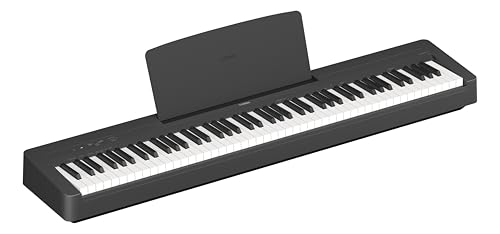
Yamaha P-145
Mentioned
Who Should Buy It
- You are buying a first piano and want the newest entry-level Yamaha
- Space is tight and you need a shallow, light instrument
- You practice with play-along tracks from a phone
Skip It If
- You already play intermediate repertoire with heavy pedaling
- You need line outs for stage or recording use
- You want more than ten sounds
We may earn a commission at no extra cost to you.
Last verified: October 2026

Roland FP-30X
Mentioned
Who Should Buy It
- You want the best action under the FP-60X without compromise elsewhere
- You stream backing tracks over Bluetooth and record over USB
- You gig and need line outs plus two headphone jacks
Skip It If
- Weight and depth are the constraint; the PX-S1100 is lighter and slimmer
- You prefer the Kawai sound signature
- You never leave the house and want a console with three pedals built in
We may earn a commission at no extra cost to you.
Last verified: October 2026

Casio CDP-S160
Mentioned
Who Should Buy It
- You need to carry the piano regularly or store it upright
- You want battery operation for busking, school or outdoor use
- A first piano on a tight budget with a real hammer action
Skip It If
- You play pedal-heavy pieces that need more than 64 notes
- You want Bluetooth or app control over a wireless link
- You need quarter-inch outputs for a PA
We may earn a commission at no extra cost to you.
Last verified: October 2026
Keep Reading
Related guides and picks on Mandrillis:
- Best Digital Pianos : reliable pianos for daily play
- How to Clean Sticky Digital Piano Keys : safe key cleaning
- Why Does My Digital Piano Have No Sound? : when every key is silent
FAQs
About This Guide
Daniel Brooks
Daniel Brooks edits the buying guides and how-to articles at Mandrillis. He works from manufacturer manuals, published specifications and common owner questions to explain music and audio gear in plain language, from turntables and headphones to digital pianos and electronic drums.
Read our full research methodology.