Guides
How to Connect a Digital Piano to a Laptop (Easy Steps)
Connecting a digital piano to a laptop opens up learning apps, recording software and virtual piano sounds. Most modern pianos make it easy with a single USB cable. This guide explains the three main ways to connect, which cable you need, how to set up your software, and how to fix the most common problems.
Quick Answer
Most digital pianos connect to a laptop with a USB cable from the piano's USB to Host port to a USB port on the laptop. The laptop usually detects the piano as a MIDI device without extra drivers. Older pianos with 5-pin MIDI ports need a USB MIDI adapter. To record the piano's own sound, use an audio interface.
How this guide was put together
This guide is based on manufacturer manuals, published specifications and widely used audio reference standards. Mandrillis does not run hands-on tests for these guides, so treat figures as typical values and check the manual for your own gear before changing settings.
What You Can Do With a Piano and a Laptop
Once connected, your laptop can read every key you press, how hard you press it and when you use the pedal. That data is called MIDI.
MIDI is not sound. It is a set of instructions that apps and music software use to show notes, play sounds or record your performance.
- Use piano learning apps that follow along as you play.
- Record your playing into music software.
- Play virtual instrument sounds from the laptop.
- Write sheet music by playing it in.
- Save practice sessions to listen back later.
Check Which Ports Your Piano Has
Look at the back or side panel of your piano. The ports you find decide which cable you need.
Your piano's manual lists each port and its purpose. It is worth a quick look before you buy any cable.
Common Ports
Most pianos made in the last decade have at least one of these.
- USB to Host: a square USB-B port, or sometimes USB-C. This connects straight to a computer.
- USB to Device: a flat USB-A port for flash drives, not for a computer.
- MIDI In and Out: round 5-pin ports found on older or larger models.
- Line Out or Aux Out: audio outputs, often 1/4 inch jacks.
- Headphone jack: also usable as an audio output on many models.
Ways to Connect a Digital Piano to a Laptop
Pick the method that matches your piano's ports and what you want to do.
| Method | Cable or device needed | Best for |
|---|---|---|
| USB to Host | USB-A to USB-B cable, or USB-C cable | Apps, MIDI recording, virtual pianos |
| 5-pin MIDI | USB MIDI interface cable | Older pianos without USB |
| Audio out | Audio interface plus 1/4 inch cables | Recording the piano's own sound |
| Bluetooth MIDI | Built-in Bluetooth on piano and laptop | Wireless use with apps |
Method 1: Connect With a USB Cable
This is the simplest and most common method. One cable carries MIDI data both ways, and most laptops recognize the piano automatically.
Steps
Turn the piano off before you plug in the cable, then follow these steps.
- Find the USB to Host port on the piano.
- Use a USB-A to USB-B cable, or a USB-C cable if your piano or laptop needs it.
- Plug the cable into the piano and the laptop.
- Turn the piano on and wait a few seconds for the laptop to detect it.
- Open your app or music software and select the piano as the MIDI input.
Do You Need a Driver?
Most current pianos are class compliant, which means they work without extra software on Windows and macOS. Some older models need a USB MIDI driver from the maker's website.
If the laptop does not see the piano, check the support page for your exact model.
Method 2: Connect With 5-Pin MIDI
Older pianos may only have round 5-pin MIDI ports. You need a USB MIDI interface, which is a cable with two MIDI plugs on one end and USB on the other.
Connect the piano's MIDI Out to the interface's MIDI In plug. That direction carries your playing to the laptop. Connect MIDI In to the interface's Out only if you want the laptop to play the piano's sounds.
Method 3: Record the Piano's Sound With an Audio Interface
USB MIDI sends notes, not the sound of your piano's built-in voices. To record the actual piano sound, you need an audio connection.
Some pianos can also send audio over USB. Check your manual for a USB audio feature before buying extra gear.
- Connect the piano's Line Out or headphone out to an audio interface.
- Use two cables for stereo, left and right.
- Connect the interface to the laptop with USB.
- Set the interface input level so the loudest notes stay below the red.
Method 4: Bluetooth MIDI
Some newer pianos have Bluetooth MIDI. This lets you connect to a laptop or tablet without cables.
Pair through your app or the computer's MIDI settings rather than the normal Bluetooth menu. Bluetooth can add a small delay, so USB is still the better choice for recording.
Setting Up Your Software
Once connected, your software needs to know where MIDI is coming from. This takes only a minute.
Basic Software Setup
The exact menu names vary by app, but the steps are similar everywhere.
- Open the app's settings or preferences.
- Find the MIDI input section and select your piano.
- Turn on the input or enable the device if needed.
- Create an instrument track and press a key to test.
- If you hear the piano and the laptop together, turn down Local Control or the laptop sound.
Fixing Delay When You Play
Delay, also called latency, is a gap between pressing a key and hearing a laptop sound. Over about 10 milliseconds, many players start to notice it.
Lower the buffer size in your audio settings, often to 128 or 256 samples. On Windows, an audio interface with its own driver usually gives much lower delay than the built-in sound card.
Troubleshooting Common Problems
Most connection problems have simple causes. Work through these before assuming anything is broken.
- Laptop does not see the piano: try another USB port and another cable.
- Using a charge-only cable: some USB cables carry power but not data.
- Piano found but no notes: select it as the MIDI input in the app.
- Double notes: turn Local Control off on the piano or mute one sound.
- Notes drop out: avoid USB hubs and connect directly to the laptop.
A Few Safety Tips
Turn the piano off before plugging or unplugging cables, especially audio cables, to avoid loud pops through speakers or headphones.
Keep the laptop on a stable stand, not balanced on the music rest. Route cables so nobody trips on them and they do not pull on the ports.
The Bottom Line
For most digital pianos, a single USB cable from the USB to Host port is all you need. The laptop sees it as a MIDI device for apps and recording.
Use a USB MIDI adapter for older pianos, and an audio interface when you want to record the piano's own sound.
Digital Pianos From Our Reviews
Popular portable digital pianos that work well with learning apps and recording software.
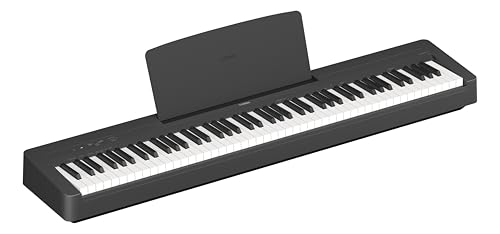
Yamaha P-145
Mentioned
Who Should Buy It
- You are buying a first piano and want the newest entry-level Yamaha
- Space is tight and you need a shallow, light instrument
- You practice with play-along tracks from a phone
Skip It If
- You already play intermediate repertoire with heavy pedaling
- You need line outs for stage or recording use
- You want more than ten sounds
We may earn a commission at no extra cost to you.
Last verified: October 2026

Roland FP-30X
Mentioned
Who Should Buy It
- You want the best action under the FP-60X without compromise elsewhere
- You stream backing tracks over Bluetooth and record over USB
- You gig and need line outs plus two headphone jacks
Skip It If
- Weight and depth are the constraint; the PX-S1100 is lighter and slimmer
- You prefer the Kawai sound signature
- You never leave the house and want a console with three pedals built in
We may earn a commission at no extra cost to you.
Last verified: October 2026

Casio CDP-S160
Mentioned
Who Should Buy It
- You need to carry the piano regularly or store it upright
- You want battery operation for busking, school or outdoor use
- A first piano on a tight budget with a real hammer action
Skip It If
- You play pedal-heavy pieces that need more than 64 notes
- You want Bluetooth or app control over a wireless link
- You need quarter-inch outputs for a PA
We may earn a commission at no extra cost to you.
Last verified: October 2026
Keep Reading
Related guides and picks on Mandrillis:
- Best Digital Pianos for Beginners : pianos with USB to Host
- How to Choose a Digital Piano : features that matter
- Best Audio Interfaces : record the piano's own sound
FAQs
About This Guide
Mandrillis Team
The Mandrillis editorial team researches and compares audio and music gear using manufacturer documentation, verified specs and real buyer feedback, so you can make a confident purchase without wading through marketing claims.
Read our full research methodology.