
Guides
How to Connect an Audio Interface to a Phone (Step-by-Step)
Many USB audio interfaces work with phones, turning a phone into a simple recording or streaming setup. Getting it right depends on the right adapter, enough power and the right app settings. This guide covers the connections for both phone types, power options, setup steps and common fixes.
Quick Answer
To connect an audio interface to a phone, use a USB-C cable or adapter for most phones, or a Lightning to USB camera adapter for older iPhones. Many interfaces need more power than a phone supplies, so use a powered USB hub or the interface's own power supply. Then select the interface as the input in your recording app.
How this guide was put together
This guide is based on manufacturer manuals, published specifications and widely used audio reference standards. Mandrillis does not run hands-on tests for these guides, so treat figures as typical values and check the manual for your own gear before changing settings.
Can Any Audio Interface Work With a Phone?
Many USB interfaces are class compliant, which means they work without special drivers. Phones can usually use class compliant interfaces directly.
Some interfaces need a driver that only exists for computers. Those may not work on a phone at all. Check the maker's website for phone or tablet support before you buy.
- Look for the words class compliant in the specs.
- Check the maker's support page for iOS or Android notes.
- Interfaces needing desktop drivers may not work on phones.
- Streaming mixers with USB are often designed with phones in mind.
What You Need for Each Phone Type
A quick guide to cables and adapters.
| Phone connection | Cable or adapter | Power tip |
|---|---|---|
| USB-C phone | USB-C to USB-C, or USB-C to USB-A adapter | Use a powered hub for bus-powered interfaces |
| Lightning iPhone | Lightning to USB 3 camera adapter | Adapter with a charging port helps |
| Interface with its own power supply | Same cables as above | Plug in the interface power first |
| Interface powered by USB only | Powered USB hub between phone and interface | Phone alone may not supply enough |
The Power Problem, Explained Simply
Most USB interfaces draw power from the USB port. A computer port supplies plenty. A phone supplies much less, and some phones limit power to save battery.
If the interface does not light up or keeps disconnecting, it is probably not getting enough power. Condenser mics with phantom power make this worse, because phantom power needs extra current.
Ways to Give the Interface Enough Power
Pick one of these options. They also save your phone battery during long sessions.
- Use an interface with its own power adapter.
- Put a powered USB hub between the phone and interface.
- Use a Lightning camera adapter that has a charging port.
- Choose a dynamic mic to avoid phantom power draw.
Step-by-Step Setup
Follow these steps in order. Turn the interface volume and headphones down first.
Step 1: Connect Power
If your interface has a power supply or uses a powered hub, connect that first. The interface should light up before you connect the phone.
Step 2: Connect the Phone
Plug the phone into the interface using the right cable or adapter. Unlock the phone. Some phones ask for permission to use the USB device, so tap allow.
Step 3: Plug In Your Mic and Headphones
Connect your microphone with an XLR cable and plug headphones into the interface. Turn on phantom power only if you use a condenser mic.
Step 4: Set Up Your App
Open your recording, streaming or video app. In its audio settings, choose the interface as the input. Many camera apps use the interface automatically once connected.
Speak at your normal level and set the gain so peaks reach about minus 12 to minus 6 dB if your app shows a meter.
Recording Video With an Interface
Many phones use the connected interface for audio when you record video, so you get clear sound with your footage. Some camera apps still use the built-in mic, so test with a short clip first.
If your camera app ignores the interface, a third-party camera app with audio input settings often solves it.
Streaming and Calls
Streaming mixers with loopback let you combine your mic with music or game audio from the phone. That is useful for live streams.
For calls, the phone may switch to its own mic. Check the app's settings and keep the interface selected as the input.
Monitoring Yourself Without Delay
When you record on a phone, the sound in your headphones can lag behind your voice. That delay makes singing and speaking feel strange.
Most interfaces have a direct monitor switch or knob. It sends your mic straight to the headphones before the phone processes it, so you hear yourself with no delay.
- Turn on direct monitoring on the interface.
- Turn off monitoring inside the app to avoid hearing yourself twice.
- Use a blend knob, if present, to balance your voice and the playback.
- Keep headphone volume moderate for long sessions.
Fixing Common Problems
Most problems come from power, adapters or app settings. Try these fixes in order.
- Interface does not turn on: add a powered hub or the interface's own power supply.
- Phone does not see the interface: try a different adapter or check for a driver requirement.
- No sound in the app: select the interface as the input in app settings.
- Sound only in one ear: check the interface's mono or monitor settings.
- Crackling or dropouts: use shorter cables and close other apps.
Tips for Better Phone Recordings
A phone setup can sound very good with a few habits.
- Turn on airplane mode to stop calls and notifications interrupting.
- Keep the phone plugged into power for long sessions.
- Use a dynamic mic close to your mouth in untreated rooms.
- Monitor with headphones plugged into the interface, not the phone.
- Record a short test before every session.
The Bottom Line
Most class compliant interfaces work with phones using the right USB-C or Lightning adapter. Power is the most common problem, so plan for a powered hub or an interface with its own supply.
Select the interface in your app, set your gain and test before recording. With that done, a phone makes a capable, portable studio.
Interfaces Often Used With Phones
Interfaces and streaming mixers from our reviews. Check each maker's support page for phone compatibility before buying.
Yamaha AG06MK2 Streaming Mixer and USB Interface
Mentioned
Who Should Buy It
- Live streamers who need to blend game or desktop audio with a microphone feed
- Podcast hosts who want onboard mute control and DSP effects without extra software load
- Buyers who want a bundled DAW and streaming-editing tool in one purchase
- Small content teams running two condenser microphones from a single mixer
Skip It If
- You need a published sample rate or bit depth figure before ordering
- You require more than two mic inputs for a band or panel setup
- You want detailed output routing beyond the basic USB connection
We may earn a commission at no extra cost to you.
Last verified: November 2026
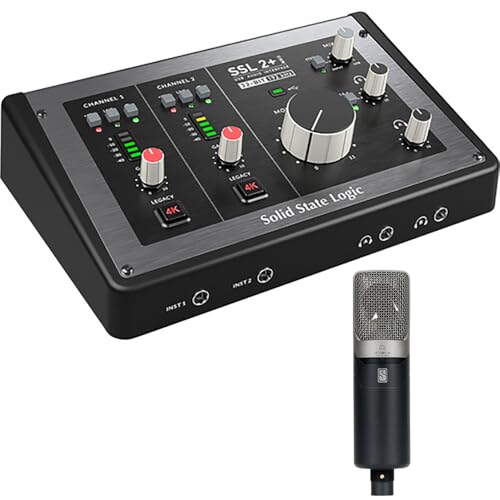
Solid State Logic SSL 2+ MKII
Mentioned
Who Should Buy It
- Podcasters and solo producers who want a bundled condenser microphone alongside their interface
- Musicians who want Legacy 4K analog enhancement for console style coloring on their recordings
- Buyers who want MIDI I/O built directly into their interface rather than needing a separate MIDI box
- Producers who want zero-latency monitoring with stereo loopback for streaming or voiceover work
Skip It If
- You need more than 2 simultaneous mic inputs for a larger session
- You already own a condenser microphone and do not want to pay for a bundled one
- You need a confirmed preamp gain figure in decibels before purchase
We may earn a commission at no extra cost to you.
Last verified: November 2026

Yamaha Steinberg URX22C USB-C Audio Interface
Mentioned
Who Should Buy It
- Singer-songwriters tracking vocals and one instrument at a time
- Podcasters or streamers who want onboard reverb and amp modeling without a computer load
- Guitarists who want a Hi-Z input alongside a mic preamp in one small box
- Buyers who want a bundled DAW and plug-in suite rather than buying software separately
Skip It If
- You record full bands or need more than two inputs at once
- You require a published gain figure in decibels before purchase
- You need balanced monitor outputs beyond the two TRS mains described
We may earn a commission at no extra cost to you.
Last verified: November 2026
Keep Reading
Related guides and picks on Mandrillis:
- Best Audio Interfaces for Home Recording : compact interfaces for any setup
- XLR vs USB Microphone for Beginners : choose the right mic for a phone setup
- What Is Phantom Power and When to Use It? : why condensers drain more power
FAQs
About This Guide
Mandrillis Team
The Mandrillis editorial team researches and compares audio and music gear using manufacturer documentation, verified specs and real buyer feedback, so you can make a confident purchase without wading through marketing claims.
Read our full research methodology.