Guides
Why Is My Mic Picking Up Keyboard Noise? (9 Simple Fixes)
Keyboard clatter is one of the most common complaints on streams, podcasts and calls. It reaches the mic through the air and through the desk. This guide explains both paths, how microphone pickup patterns work, and nine practical fixes from free placement changes to boom arms and noise gates.
Quick Answer
Your mic picks up keyboard noise because it is sensitive, close to the keyboard and often on the same desk, which carries vibration. Point the back of a cardioid mic at the keyboard, move closer, lower the gain and use a boom arm with a shock mount. A dynamic mic and a noise gate help even more.
How this guide was put together
This guide is based on manufacturer manuals, published specifications and widely used audio reference standards. Mandrillis does not run hands-on tests for these guides, so treat figures as typical values and check the manual for your own gear before changing settings.
Two Ways Keyboard Noise Reaches Your Mic
Keyboard sound travels to the mic in two ways. The first is through the air, as the clicks and clacks you can hear in the room.
The second is through the desk. Each key press sends a small vibration through the desk surface, up the mic stand and into the mic. That shows up as low thumps.
- Airborne noise: clicks and clacks, sharper and higher pitched.
- Desk vibration: low thumps when keys bottom out.
- Both get worse with sensitive mics and high gain.
Why Some Mics Pick Up More Noise
Condenser mics are very sensitive. They capture fine detail in your voice, but they also capture the room, including keyboards and mice.
Dynamic mics are less sensitive. When you speak close to them, your voice is much louder than the keyboard, so the clicks drop into the background.
Keyboard Noise Fixes Compared
Start with the free fixes, then add gear if needed.
| Fix | Cost | Effect |
|---|---|---|
| Aim the mic's back at the keyboard | Free | Large |
| Move closer and lower gain | Free | Large |
| Boom arm off the desk | Low | Large on thumps |
| Shock mount | Low | Reduces vibration |
| Noise gate or suppression | Free in many apps | Medium to large |
| Dynamic mic | Medium | Large |
9 Ways to Stop Your Mic Picking Up Keyboard Noise
Make one change at a time and record a short test, so you know what helped.
1. Point the Back of the Mic at the Keyboard
Most streaming and podcast mics are cardioid. They hear best from the front and least from directly behind.
Place the mic so the front faces your mouth and the back faces the keyboard. This uses the mic's quietest side to block the clicks.
2. Move Closer to the Mic
The closer you are, the louder your voice is compared with the keyboard. For dynamic mics, stay about 1 to 3 inches away.
Getting closer also lets you lower the gain, which reduces everything else the mic hears.
3. Lower the Gain
High gain makes the mic pick up quiet sounds across the room. Set gain while speaking at your normal level, aiming for peaks around minus 12 to minus 6 dB.
Do not raise it higher than needed.
4. Use a Boom Arm
A boom arm clamps to the edge of the desk or mounts separately and holds the mic in the air. It takes the mic off the desk surface, which cuts most vibration thumps.
Position it so the mic sits close to your mouth and away from the keyboard.
5. Add a Shock Mount
A shock mount holds the mic in elastic bands that absorb vibration. It stops thumps from the desk and stand reaching the mic.
Many studio mics include one or have one available from the maker.
6. Use a Noise Gate or Suppression
A noise gate mutes the mic when you are not speaking. Many streaming, calling and recording apps include one, along with noise suppression.
Set the gate threshold just below your speaking level so it opens when you talk and closes during typing breaks.
7. Switch to a Dynamic Mic
If you use a condenser at a busy desk, a dynamic mic is often the biggest upgrade. Used close, it hears your voice and far less of the room.
This is why many streamers use broadcast style dynamic mics.
8. Soften the Desk and Keyboard
A thick desk mat absorbs some impact noise. Foam or rubber pads under the keyboard can reduce the thump passed to the desk.
Keyboards with quieter switches or dampened keys also make less noise.
9. Move the Keyboard Farther Away
Even a few extra inches of distance helps. Place the keyboard lower or farther forward while keeping the mic close to you.
Avoid placing the mic directly over the keyboard.
Understanding Pickup Patterns
A pickup pattern shows which directions a mic hears best. Choosing and aiming the right pattern is one of the cheapest ways to cut keyboard noise.
Most desk mics use one of three patterns. Knowing yours tells you where to put the keyboard.
- Cardioid: hears the front, rejects the back. Put the keyboard behind it.
- Supercardioid: tighter front, rejects the sides well, hears a little from directly behind. Put the keyboard at the rear sides.
- Omnidirectional: hears all around equally. Hard to use at a noisy desk.
- USB mics with pattern switches: choose cardioid for solo streaming.
Settings to Check in Your Apps
Many apps add their own processing. Check these settings in your streaming, calling or recording software.
- Turn on noise suppression for calls and streams.
- Set a noise gate just below your speaking level.
- Avoid extra gain boosts inside the app.
- Select the right mic as the input device.
Common Mistakes
These setups make keyboard noise much worse.
- Placing a sensitive condenser mic flat on the desk.
- Facing the front of the mic toward the keyboard.
- Sitting far from the mic and turning the gain up.
- Using a desk stand with no shock mount.
- Setting the noise gate too low to do anything.
The Bottom Line
Keyboard noise comes from air and desk vibration. Aim the back of the mic at the keyboard, get close, and lower the gain.
A boom arm, a shock mount and a noise gate handle most of what is left. For a busy desk, a dynamic mic is the most reliable fix.
Test your setup by typing at full speed while recording silence, then listen back with headphones. If you still hear clicks, work through the fixes again one at a time until the keyboard fades into the background.
Mics That Reject Desk Noise Well
Dynamic mics from our reviews that are popular for streaming and podcasting at a busy desk.
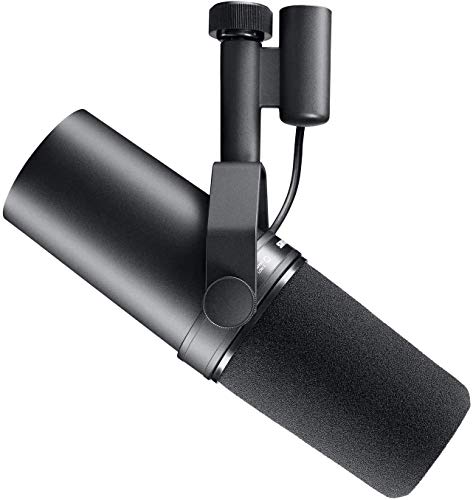
Shure SM7B
Mentioned
Who Should Buy It
- You want a broadcast-quality voice for podcasting or streaming
- You record in an untreated room and need strong noise rejection
- You have or plan to add a clean-gain boost like a Cloudlifter
Skip It If
- Your interface or preamp can't provide enough clean gain
- You want the most affordable entry point into XLR microphones
We may earn a commission at no extra cost to you.
Last verified: September 2026

Rode PodMic Dynamic Podcasting
Mentioned
Who Should Buy It
- Co-hosted podcasts setting up a permanent two-seat studio
- Interview shows that need a guest position ready at all times
- Streamers moving from a USB microphone to an XLR dynamic on a boom
- Small offices and schools building a simple voice recording room
Skip It If
- You are a solo podcaster who only needs one microphone
- You do not own an interface or mixer with XLR inputs
- You prefer a USB microphone with no additional gear
We may earn a commission at no extra cost to you.
Last verified: October 2026

Shure MV7
Mentioned
Who Should Buy It
- Solo podcasters recording spoken word in an untreated room
- Streamers and gamers who want headphone monitoring straight from the microphone
- Creators planning to move from USB to an XLR interface without replacing the mic
- Voice-over hobbyists who prefer a dynamic capsule over a sensitive condenser
Skip It If
- You need a microphone for distant or multi-person pickup
- You want a documented pattern and response curve on the listing
- Your budget is better spent on an XLR dynamic plus a separate interface
We may earn a commission at no extra cost to you.
Last verified: October 2026
Keep Reading
Related guides and picks on Mandrillis:
- Best Podcast Microphones : mics that reject desk noise
- Dynamic vs Condenser Mic for an Untreated Room : why dynamics pick up less
- How to Set Gain Staging on an Audio Interface : set gain without extra noise
FAQs
About This Guide
Mandrillis Team
The Mandrillis editorial team researches and compares audio and music gear using manufacturer documentation, verified specs and real buyer feedback, so you can make a confident purchase without wading through marketing claims.
Read our full research methodology.