
Guides
How to Fix Audio Crackling in a DAW (10 Proven Fixes)
Crackles and pops in recording software usually mean the computer cannot keep up with real-time audio, not that your gear is broken. This guide explains what causes crackling, how to tell it apart from clipping, and ten fixes in order, starting with buffer size and sample rate.
Quick Answer
To fix audio crackling in a DAW, raise the buffer size in your audio settings, often to 256 or 512 samples, and make sure the DAW and interface use the same sample rate. Use the interface's dedicated driver, plug it straight into the computer, close other apps, and freeze or bounce heavy plugin tracks.
How this guide was put together
This guide is based on manufacturer manuals, published specifications and widely used audio reference standards. Mandrillis does not run hands-on tests for these guides, so treat figures as typical values and check the manual for your own gear before changing settings.
What Causes Crackling in a DAW
A DAW, or digital audio workstation, processes audio in small chunks called buffers. If the computer cannot finish a chunk in time, it drops a tiny piece of audio. You hear that as a click, pop or crackle.
This is called a buffer underrun, or a dropout. It usually happens when the computer is busy with heavy plugins, other apps or slow drivers.
- Buffer size too small for the work being done.
- Sample rate mismatch between the DAW and interface.
- Heavy plugins and too many tracks.
- Generic drivers instead of the interface's own driver.
- Power saving settings that slow the computer down.
Crackling vs Clipping: Know the Difference
Clipping happens when the signal is too loud and hits the top of the meter. It sounds like harsh distortion on loud parts and shows red on the meters.
Crackling from dropouts happens at random, even on quiet parts, and often gets worse as you add plugins. Fix clipping by lowering gain. Fix crackling with the steps below.
Buffer Size Trade-Offs
Larger buffers stop crackles but add delay. Pick by task.
| Buffer size | Delay | Best for |
|---|---|---|
| 64 samples | Very low | Recording on a fast computer |
| 128 samples | Low | Recording vocals and instruments |
| 256 samples | Moderate | Light mixing or recording |
| 512 samples | Higher | Mixing with many plugins |
| 1024 samples | High | Heavy mixing and mastering |
10 Fixes for Audio Crackling
Work through these in order. Test playback after each change so you know which one helped.
1. Raise the Buffer Size
This is the most common fix. In your DAW's audio settings, raise the buffer size, for example from 128 to 256 or 512 samples.
Larger buffers give the computer more time, which stops dropouts. They add a little delay, so use smaller buffers when recording and larger ones when mixing.
2. Match the Sample Rate
If the DAW project runs at 48 kHz and the interface or computer runs at 44.1 kHz, the mismatch can cause clicks.
Set the project, the interface and the computer's sound settings to the same rate.
3. Use the Interface's Dedicated Driver
On Windows, many interfaces have their own ASIO driver. It is far more efficient than generic drivers. Install it from the maker's website and select it in the DAW.
On Mac, most interfaces work with built-in drivers, but some makers still offer their own.
4. Plug the Interface Straight Into the Computer
USB hubs, especially unpowered ones, can cause dropouts. Plug the interface directly into a port on the computer.
Try a different port if crackling continues, and use the cable that came with the interface.
5. Close Other Apps
Web browsers, video apps and background updates use processing power. Close everything you do not need while recording.
Turn off Wi-Fi and Bluetooth during critical sessions if they are not needed.
6. Freeze or Bounce Heavy Tracks
Plugins like reverb, amp simulators and virtual instruments use a lot of power. Most DAWs let you freeze or bounce a track, turning it into plain audio.
That frees up processing for the rest of the session.
7. Set Power Options to High Performance
Laptops slow down to save battery. That can cause dropouts. Plug the laptop into power and choose a high performance or best performance mode.
Turn off sleep for USB ports if your system has that option.
8. Disable Low Latency Mode on Mixdown
Some DAWs have a low latency or monitoring mode that limits plugins for recording. Turn it off while mixing so plugins run normally.
Turn it on again only when you need very low delay while recording.
9. Update Drivers and Software
Update the interface driver, the DAW and the computer's operating system. Fixes for dropouts are common in updates.
If crackling started right after an update, check the maker's support notes or roll back.
10. Check Your Cables and Clock Settings
A damaged USB cable can cause clicks. Swap it to test. If you use digital connections between devices, make sure only one device is set as the clock source.
Two devices fighting over the clock is a classic cause of regular clicks.
Recording vs Mixing Settings
The best settings change with the task. Recording needs low delay. Mixing needs stability for many plugins.
- Recording: buffer 64 to 128 samples, few plugins active.
- Mixing: buffer 512 to 1024 samples, plugins as needed.
- Use the interface's direct monitoring while recording to hear yourself without delay.
- Save your settings so switching is quick.
How to Find Which Track Is Causing It
In a big session, one heavy plugin can cause most of the crackling. Finding it saves you from raising the buffer more than needed.
Most DAWs have a performance or CPU meter. Watch it while the song plays, and note when it spikes.
- Mute half the tracks and listen. If crackling stops, the problem is in that half.
- Keep halving until you find the track or plugin.
- Look for oversampling or high quality modes on plugins, which use extra power.
- Replace or freeze the heaviest plugin once you find it.
When the Problem Is Not the Computer
If crackling continues on a simple session with no plugins, check the hardware. A faulty cable, a bad USB port or a damaged audio file can cause clicks too.
Play the same audio file in another app. If it crackles there too, the file itself may be damaged.
The Bottom Line
Most DAW crackling comes from a buffer that is too small or a computer that is too busy. Raise the buffer, match sample rates and use the interface's own driver.
Close other apps, freeze heavy tracks and keep the laptop on full power. These steps fix the vast majority of crackle problems.
Audio Interfaces From Our Reviews
Interfaces with dedicated drivers and buffer controls that help keep recording sessions stable.
Focusrite Scarlett 18i20 4th Gen
Mentioned
Who Should Buy It
- Project studios tracking full bands that need 8 simultaneous mic preamps with real gain headroom
- Engineers who want to expand channel count later through dual ADAT without replacing the main interface
- Producers who want Auto Gain and Clip Safe to speed up tracking across many inputs at once
- Buyers who want a bundled software package covering recording, production and mastering in one purchase
Skip It If
- You only need one or two simultaneous inputs for a solo setup
- You do not plan to use ADAT, S/PDIF or Word Clock expansion at any point
- You want the smallest, lightest interface possible rather than a larger format unit
We may earn a commission at no extra cost to you.
Last verified: November 2026
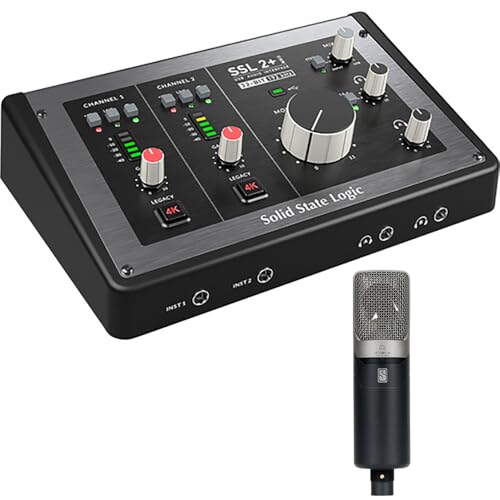
Solid State Logic SSL 2+ MKII
Mentioned
Who Should Buy It
- Podcasters and solo producers who want a bundled condenser microphone alongside their interface
- Musicians who want Legacy 4K analog enhancement for console style coloring on their recordings
- Buyers who want MIDI I/O built directly into their interface rather than needing a separate MIDI box
- Producers who want zero-latency monitoring with stereo loopback for streaming or voiceover work
Skip It If
- You need more than 2 simultaneous mic inputs for a larger session
- You already own a condenser microphone and do not want to pay for a bundled one
- You need a confirmed preamp gain figure in decibels before purchase
We may earn a commission at no extra cost to you.
Last verified: November 2026

Behringer U-PHORIA UMC204HD USB Audio Interface
Mentioned
Who Should Buy It
- Solo singer-songwriters tracking vocals and one instrument at a time
- Podcasters or streamers who want two phantom-powered combo inputs
- Musicians who want MIDI In and Out without a separate interface
- Buyers who want a straightforward budget interface from an established name
Skip It If
- You need four or more simultaneous inputs
- You require a confirmed software bundle before buying
- You need a dedicated high-impedance instrument input and none is stated
We may earn a commission at no extra cost to you.
Last verified: November 2026
Keep Reading
Related guides and picks on Mandrillis:
- Best Audio Interfaces for Home Recording : interfaces with efficient drivers
- How to Set Gain Staging on an Audio Interface : avoid clipping distortion
- Audio Interface vs Mixer for Home Recording : choose the right recording device
FAQs
About This Guide
Mandrillis Team
The Mandrillis editorial team researches and compares audio and music gear using manufacturer documentation, verified specs and real buyer feedback, so you can make a confident purchase without wading through marketing claims.
Read our full research methodology.